Draw with AR: Trace and Sketch
- 4.6
- Rating
- 1.00M
- Installs
- Free
- Price
 Analysis by App-foxy
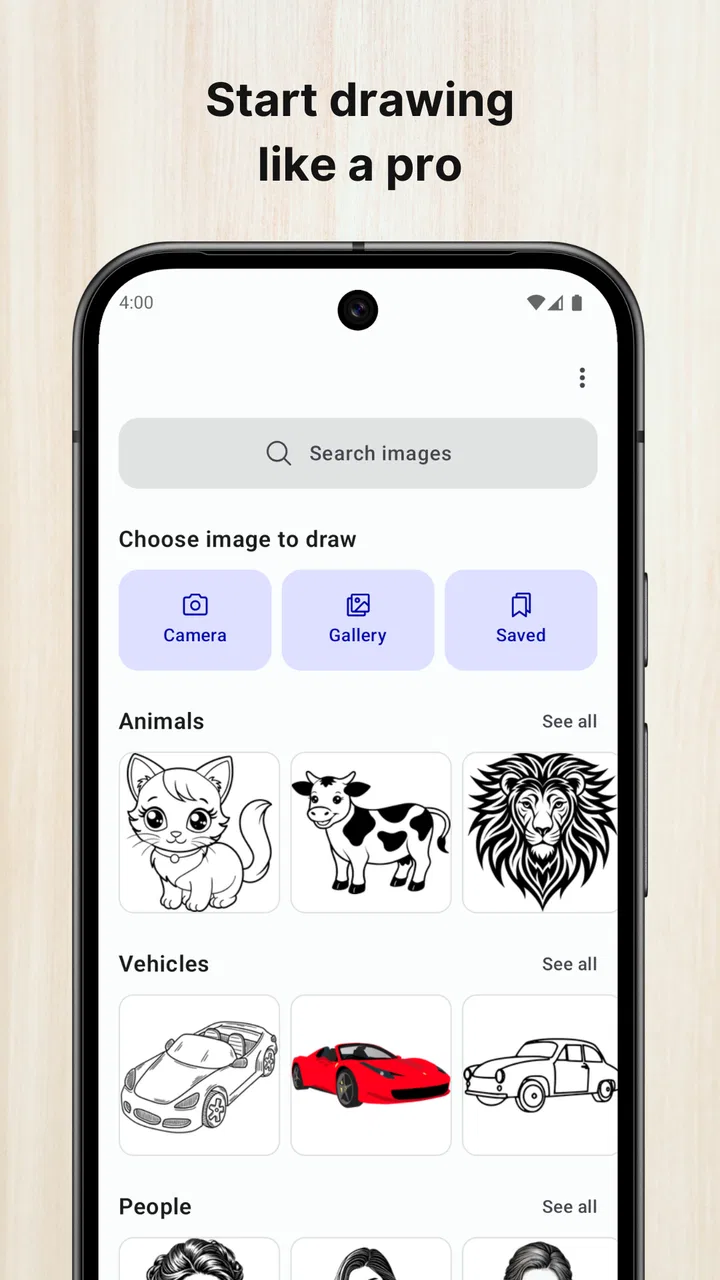
Draw with AR: Trace and Sketch caught my attention because it turns a phone into a practical drawing guide rather than asking me to begin with a blank page. I tested it as an art and design app from Veewa Labs, and my first impression was simple: it is most useful when I already have something I want to draw but need help with proportions, placement, or confidence. The camera-based approach makes the experience feel immediate, especially for beginners who find traditional sketching intimidating.
The appeal is easy to understand. Instead of constantly looking down at a reference and then back at the paper, I can use the phone’s view as a guide while working on a physical surface. That makes the app feel closer to a tracing aid or portable lightbox than to a conventional digital drawing program. It does not replace learning to observe, but it can make the first stage of a drawing less frustrating.
After spending time with it, though, I think the important question is not whether the AR effect is impressive for a few minutes. The better question is whether it earns a regular place in a creative routine after the novelty fades. My answer is cautiously positive: it can become a useful practice tool, but only for people who accept its focused purpose and are willing to handle the small practical compromises that come with drawing through a phone screen.
You May Also Like

 Blood Strike: 2.5 Anniversary
Blood Strike’s Loadouts Turn Every Drop Into a Tactical Gamble
A close look at Blood Strike’s custom loadouts: how fast access to signature weapons reshapes its battle royale rhythm, rewards preparation, and narrows the gap between fights.

 Pandora - Music & Podcasts
Pandora’s Music Is Easy to Start, but Harder to Recover
Pandora’s strength is its low-effort path from a seed to a station. Its weak spot is how much confidence it asks you to place in connection, setup, and quiet recovery.

 8 Ball Pool
 Is Built on Rivalries, Rematches, and Routine
A close look at the rivalries, rematches, shared routines, and unanswered safety questions that turn a quick pool match into a persistent mobile community.

 Samsung Music
’s Quiet Strength Is Playing What You Already Own
Its reach comes less from spectacle than from dependable access to a personal library. That simplicity is both the app’s strongest retention engine and its ceiling.

 AccuWeather: Weather Radar
AccuWeather Review: A Quick, Clear Forecast for Everyday Decisions
For everyday plans, the best forecast is the one you can understand quickly. AccuWeather makes rain timing, radar, and local conditions easy to act on, with a few trade-offs.

 Hill Climb Racing
Why Hill Climb Racing Still Turns Crashes Into One More Run
A tiny car, a bumpy hill and one more upgrade: Hill Climb Racing keeps resurfacing because its simple chaos makes every near-miss feel personal.
More From Our News Desk



From an exciting first try to a repeatable drawing habit
I’d judge this app by what happens after the AR novelty settles: whether its guidance helps me return to drawing with a clearer purpose, rather than simply making one impressive first sketch. In the next section, I’ll look at how small changes to a session can turn that initial curiosity into a habit that still leaves room for independent choices.
Why the first week feels accessible
During the first week, the strongest advantage is reduced hesitation. A blank sheet can make even a motivated beginner freeze, while an overlaid reference gives me an obvious starting point. I can concentrate on following contours, checking where parts of an image sit, and building confidence with a pencil or pen. That makes the app approachable for casual sketching, school projects, craft ideas, and early practice with shapes.
The AR format is also more engaging than simply opening an image in a gallery. I am not just studying a picture; I am trying to translate it onto a real surface. That physical connection matters. The result remains a paper drawing, so the activity feels more tactile than working entirely on a touchscreen. For someone who enjoys making cards, decorating a notebook, or practicing simple character drawings, this can be a pleasant bridge between digital references and hands-on art.
I found the app particularly helpful when I treated it as a guide rather than a machine that would create the drawing for me. The best results came from slowing down, checking the overall silhouette first, and only then worrying about smaller details. If I chased every visible line immediately, the process became less controlled. The app can show me where to look, but it cannot make artistic decisions on my behalf.
A realistic everyday use case
Imagine having half an hour before dinner and wanting to make a small illustration for a handmade note. I can place the paper on a stable table, choose a reference, position the phone so the drawing area stays visible, and work through the outline in stages. That is a realistic use case because the app removes the need to print a template or set up a more elaborate tracing arrangement. When the session ends, I still have a physical result rather than an unfinished file hidden in a drawing folder.
It is also useful for a parent or teacher introducing basic drawing exercises. A child who struggles to estimate proportions may enjoy following a visible guide, while an adult beginner can use the same process to practice curves and composition. I would still supervise younger users around the phone and keep expectations realistic: the app supports the exercise, but improvement comes from repeating the exercise without relying on the overlay forever.
One practical tip made a noticeable difference for me: I separated the session into two passes. First, I used the guide lightly to establish the largest shapes. Then I paused to look at the paper without trying to copy every detail. This prevented the drawing from becoming a stiff collection of traced marks. It also turned the app into a teaching aid, because I had to decide which lines were actually important.
Where it sits beside familiar alternatives
Compared with a printed reference, this app is quicker when I want to try several images or change direction without preparing new paper materials. Compared with a traditional lightbox, it is more convenient if I already have a phone and do not want another piece of equipment. Compared with a full digital art app, it offers a more direct route to a physical sketch, but it does not offer the same kind of canvas control, layer management, or detailed editing workflow that serious digital illustrators usually expect.
That comparison explains its audience. I would choose this app over a standard drawing app when my goal is to make marks on paper. I would choose a digital illustration tool when I need undo history, precise brushes, complex layers, or a polished file for later editing. I would choose a printed image when I want the least distracting setup or need both hands completely free. No single option wins in every situation.
What improves with regular use
Once the initial excitement settles, the app’s value depends on whether I use it to build skill rather than merely reproduce pictures. A useful progression is to begin with a guide, finish the drawing, and then attempt the same subject again with less assistance. Another approach is to use the overlay only for the outer shape and complete internal details from observation. These methods make the tool more valuable month after month because each session can gradually reduce dependence on it.
There is also a useful trade-off between speed and originality. The guide can help me produce a recognizable result sooner, but a drawing made entirely by following an image may feel less personal. I got more satisfaction when I changed the pose, added my own details, or used the reference as a loose foundation. In that role, the app supports creativity instead of narrowing it to imitation.
The app is free to install, which makes experimenting easy. Optional in-app purchases are listed at $9.99 per item, so I would spend time with the basic experience before deciding whether any paid element fits my routine. That price point makes the decision more personal: someone using the app once for a project may prefer to stay with the free experience, while a frequent hobbyist may see additional access as worthwhile if it directly supports repeated use.
The setup habits that matter more than expected
AR drawing is more sensitive to setup than ordinary sketching. I need a reasonably stable surface, a comfortable phone position, and enough visibility to see both the guide and the paper. If the phone shifts while I am working, the relationship between the projected reference and my marks can become confusing. I learned to make the first few strokes deliberately and to check alignment before investing time in detail.
Lighting also affects comfort. In a dim room, the paper may be harder to read; in a bright room, reflections can distract me from the screen. I prefer a moderate, even light and a surface that does not move easily. These are not glamorous tips, but they determine whether a session feels smooth or irritating. The app is more enjoyable when I prepare the workspace instead of treating it like an instant solution.
Another practical issue is the phone itself. Holding it continuously is not ideal for a long drawing session, and placing it at the wrong angle can make the projected view awkward. I would not recommend beginning a detailed piece until the device is positioned comfortably. For short sketches this is manageable, but for extended work it becomes part of the maintenance burden.
Why the novelty can wear off
The AR presentation is the feature that gets people interested, but it is also the part most likely to feel less special after repeated sessions. Once I understand the basic workflow, the excitement of seeing a reference over the paper diminishes. What remains is the practical question of whether I still need help with that particular drawing task.
Repetition can expose another limitation: the process may encourage me to focus too closely on copying. If I use the guide for every line, I risk practicing hand movement without improving my ability to judge proportion independently. That is not a reason to reject the app, but it is a reason to set boundaries. I would use it for warm-ups, difficult subjects, or confidence-building, then spend some sessions drawing without it.
Fatigue can also come from the physical arrangement. Looking between the screen and the paper is not as relaxed as drawing directly on a sheet. Small shifts in the phone demand correction, and a long session can feel more technical than creative. People who want a calm, uninterrupted sketchbook experience may prefer a pencil and a reference placed beside the page.
Who should use it and who should skip it
I think this is a strong fit for beginners, casual artists, students working on visual projects, and anyone who wants to transfer a reference onto paper without buying dedicated tracing equipment. It is also a sensible choice for people who enjoy short creative sessions and appreciate immediate visual guidance. The Everyone content rating makes it suitable for a broad audience, although the quality of the experience still depends on how responsibly the device is used.
I would be more hesitant to recommend it to an experienced illustrator who already has confident observational skills. That person may find the overlay restrictive rather than helpful. It is also not my first choice for someone seeking a complete digital art studio, animation workflow, or professional image-editing environment. The app’s strength is its narrow focus, and that same focus limits its usefulness outside guided physical sketching.
People who dislike preparing a workspace should think twice as well. A conventional reference image can be opened instantly, while AR drawing asks me to arrange the paper, phone, angle, and lighting. The setup is not difficult, but it is real. If I only want to doodle for five minutes, a notebook and pencil may be faster.
How I would keep it useful over time
To prevent the app from becoming a one-week novelty, I would give each session a clear purpose. One day might focus on basic outlines, another on copying only large shapes, and another on using the guide briefly before finishing independently. I would also keep a few completed drawings so I could compare progress rather than judging the app only by how impressive the first result looks.
A particularly effective routine is to create two versions of the same subject. In the first, I use the AR guide normally. In the second, I place the reference nearby but avoid the overlay for as long as possible. The comparison shows whether the tool is teaching me anything or merely carrying the drawing. That makes the app more sustainable because it becomes part of a learning cycle, not an automatic shortcut.
I would also reserve it for subjects that genuinely benefit from alignment. For simple doodles, the extra setup may not be worth it. For a larger outline, a tricky object, or a design that needs to fit a particular area of paper, the guidance has a clearer purpose. Matching the tool to the task is the easiest way to avoid fatigue.
What the current app details mean in practice
The app was released on Jun 9, 2025, and its current version is 1.2.6. It requires Android 8.1 or later, so compatibility should be straightforward for many Android users, though I would still check the device before planning a project. The release is relatively recent, which makes it sensible to keep expectations practical: the experience may appeal most to people comfortable trying a focused tool rather than expecting the depth of a mature professional suite.
Its store presence suggests meaningful interest, with over 1M installs and a 4.4 average from around 6.2K ratings. Those figures make it easier for me to take the concept seriously, but they do not change the personal fit question. A popular drawing aid can still be wrong for someone who wants advanced digital controls, and a niche tool can still be valuable if it solves one recurring problem well.
The app remains free, with optional purchases priced at $9.99 per item. I would not treat the purchase option as a reason to commit immediately. My approach would be to test whether I actually complete several drawings with the free experience, then decide whether paying for anything would remove a limitation I encounter repeatedly. That keeps the decision tied to use rather than to the novelty of the AR presentation.
My long-term verdict
After the first-week appeal fades, Draw with AR: Trace and Sketch still has a place, but not as an all-purpose art application. I see it as a bridge between looking at a reference and making a physical drawing. Its lasting value comes from lowering the barrier to practice, helping with proportion, and making paper-based projects feel more approachable.
For me, the key is using it with intention. If I let it dictate every mark, the experience can become repetitive and the learning benefit can flatten. If I use it to establish structure, tackle difficult subjects, and then gradually work without assistance, it becomes much more worthwhile. The lasting value is not the AR effect itself, but the confidence and practice it can help me build.
My recommendation is therefore specific. Beginners and casual paper artists should try it, especially if blank pages make starting difficult. Experienced digital artists, people seeking advanced editing tools, and anyone who wants a completely distraction-free sketching setup should probably choose a different option. For the right user, this free Art & Design app from Veewa Labs can earn recurring space on a phone—not because every session feels magical, but because it solves a familiar drawing problem in a direct, hands-on way.
In short, I would keep it available for planned sketching sessions rather than daily use. That balance suits its strengths: it is convenient when I need guidance, useful when I want to transfer an idea to paper, and less convincing when I simply want to draw freely. The broad Everyone rating and accessible starting cost make trying it easy, while the focused workflow gives me a clear reason to keep it only if guided physical drawing becomes part of my routine.
FAQs for Draw with AR: Trace and Sketch
01What are the main features of Draw with AR: Trace and Sketch?
Draw with AR: Trace and Sketch offers an innovative way to learn drawing by using augmented reality. It allows users to project images onto a physical surface, trace them, and improve their drawing skills. The app includes a variety of templates, adjustable opacity, and a step-by-step guide to help users at every level.
02Is Draw with AR easy to use for beginners?
Yes, Draw with AR is designed with beginners in mind. The user-friendly interface and comprehensive tutorials make it easy for anyone to start drawing. The app guides users through each step, allowing them to adjust the difficulty level according to their skills, making it perfect for novices.
03What devices are compatible with Draw with AR: Trace and Sketch?
The app is compatible with both Android and iOS devices that support augmented reality features. It requires a device with a camera and ARCore or ARKit capability. Users should check their device specifications and ensure they have the latest operating system to enjoy a seamless experience.
04Does Draw with AR require an internet connection?
While an internet connection is needed for the initial download and to access certain online features or updates, most of the app's core functions can be used offline. This makes it convenient for users to practice drawing anywhere without the need for a constant internet connection.
05Are there any in-app purchases or ads in Draw with AR?
Draw with AR offers a free version with basic features and ads. However, users can opt for a premium version that removes ads and unlocks additional templates and advanced features. This allows users to choose the experience that best suits their needs and budget.
Pros
- Innovative AR tracing feature for easy sketching.
- Wide range of drawing templates available.
- User-friendly interface with intuitive controls.
- Works well on both Android and iOS devices.
- Regular updates improve functionality and content.
Cons
- Requires a stable internet connection for best use.
- Some advanced features locked behind a paywall.
- Occasional lag on older devices.
- Limited customization options for templates.
- AR feature may not work perfectly in low light.

Draw with AR: Trace and Sketch
Gallery